Building a Business-Class Network at Home
Why Simulate a Business Network?
As an IT professional, I have always been fascinated by the logistics of enterprise networks. Many modern businesses have the ability to administer their entire network remotely - connecting to computers and managing them from almost anywhere in the world. The sheer number of moving parts required to make that work is what drew me in, and I wanted to replicate it myself.
I already run a personal home server, but I wanted a dedicated machine capable of simulating a real business environment. I picked up a Dell OptiPlex 7050 with an i7-6700 processor and 16 GB of RAM - a solid foundation with room to expand. I installed Proxmox as the base operating system, which allows me to manage multiple Virtual Machines and containers from a single interface, much like a real data center.
Using this small but powerful computer, my plan was to create a fully-fledged business network for a fictional company: Llano Goods and Supplies; this is how I did it:
Lesson 1: The Firewall
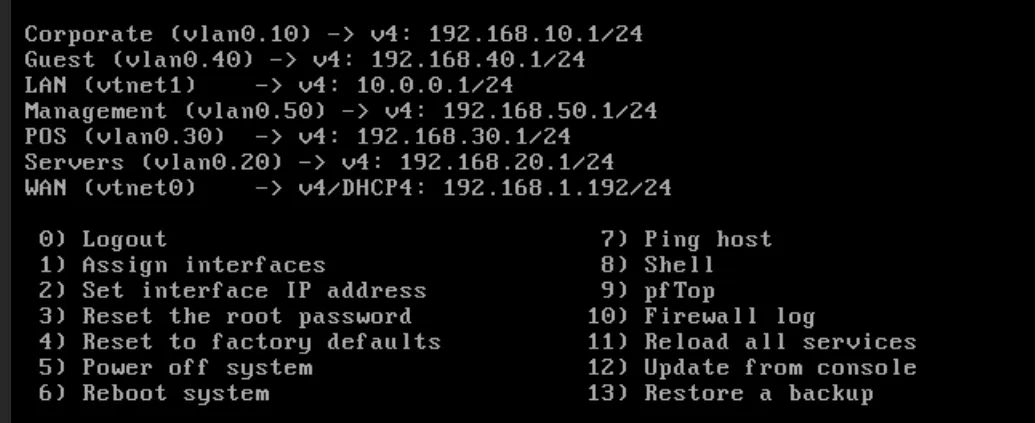
The first thing any real business network needs is a firewall. I spun up an OPNsense VM and configured it to receive a WAN connection from my router, then output its own private LAN exclusively for the virtual machines on Proxmox. This mirrors how a real business firewall works - it receives a public IP from the ISP, and outputs a controlled private network on the other side.
Once OPNsense was running, I configured five VLANs to simulate a properly segmented business network:
- Corporate Devices - employee workstations
- Servers - domain controllers, file servers, DNS
- Guest Wi-Fi - isolated internet-only access
- POS Systems - point-of-sale terminals, isolated from everything else
- Network Management - firewall administration, infrastructure access only
A VLAN creates a separation of concerns. Think of it as giving each group of devices their own private network - as if Corporate employees had their own dedicated router, completely separate from the POS systems or guest devices. This segmentation also allows for precise firewall rule enforcement. For example, a device on the Guest network should never be able to communicate with the internal servers. With VLAN segmentation, you can enforce that at the network level rather than relying on software controls alone.
One thing I learned the hard way: Kea DHCP (the DHCP server built into newer versions of OPNsense) requires its socket type to be set to raw mode in order to serve IP addresses across VLAN sub-interfaces. This isn't documented prominently, and it took significant packet-level troubleshooting to identify. Lessons like this are what make homelab work invaluable.
Lesson 2: DNS
Anyone who has worked with Microsoft Active Directory knows how critical DNS is - it is the backbone that AD depends on entirely. Without a properly functioning DNS system, nothing else works.
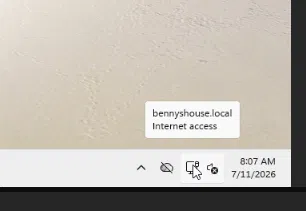
AD includes its own built-in DNS, but I opted for BIND9 on Linux out of familiarity and preference. I configured a forward lookup zone for my local domain and created the necessary A records for each server. Any computer I add to this network can now be resolved under the domain bennyshouse.local, giving the environment a clean, realistic internal namespace.
Lesson 3: The Domain Controller
With DNS in place, I provisioned a Windows Server 2025 VM and promoted it to a Domain Controller. This machine - DC01 - became the central authority of my simulated business network, responsible for authentication, access control, and policy enforcement for every device and user that joins the domain.
One of the most powerful features of Active Directory is its ability to scale across multiple locations. In a real enterprise, you might deploy a regional Domain Controller at each branch or district that handles local authentication, then replicates back to a master DC at corporate headquarters. This keeps authentication fast for local users while centralizing policy management - a design I plan to simulate as this lab grows.
Lesson 4: The User Workstation
With the infrastructure in place, I provisioned a Windows 11 VM to serve as the simulated employee workstation - the kind of machine someone would log into every morning at work. Getting here required every prior step to be functioning correctly: the firewall had to be routing traffic, DHCP had to be serving addresses, DNS had to be resolving the domain, and the DC had to be reachable. This is what I mean when I say enterprise networks have a lot of moving parts.
Once Windows 11 was installed and joined to the domain, I created a user account on DC01 - a process that mirrors exactly what happens when a new employee starts at a company. Most organizations follow a naming convention for accounts: smaller companies might use jsmith or j.smith, while larger organizations sometimes use employee ID numbers. I created my account, assigned it to the appropriate security groups, and logged in.
Lesson 5: The Network File Share
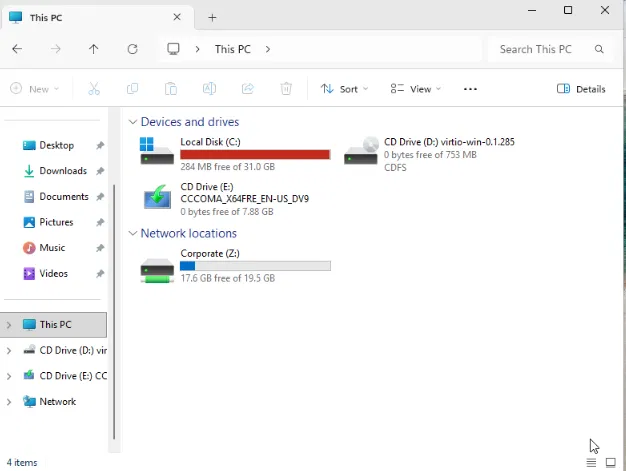
The final piece was a regulated network file share - the kind of shared drive that departments use every day for collaboration. IT teams might store scripts and tools there. A sales team might keep lead lists or reports. Access is controlled by Active Directory groups, so each user only sees what they're supposed to.
I chose Samba on Linux to host the file share, for the same reason I chose BIND9: familiarity and flexibility. Samba supports Active Directory integration through Kerberos authentication, which is what allows Linux and Windows to work together seamlessly in an AD environment. When a Windows machine tries to access a Samba share, Kerberos verifies the user's identity against the Domain Controller and confirms whether they have permission - all transparently in the background.
Here is the Samba configuration I used:
[global]
    workgroup = BENNYSHOUSE
    realm = BENNYSHOUSE.LOCAL
    security = ads
    idmap config * : backend = tdb
    idmap config * : range = 10000-19999
    idmap config BENNYSHOUSE : backend = rid
    idmap config BENNYSHOUSE : range = 20000-29999
    winbind use default domain = yes
    winbind enum users = yes
    winbind enum groups = yes
    template homedir = /home/%U
    template shell = /bin/bash

[Corporate]
    path = /shares/corporate
    browseable = yes
    read only = no
    valid users = @"BENNYSHOUSE\ Domain Users"
And the Kerberos configuration that allows Linux to authenticate against the Windows DC:
[libdefaults]
    default_realm = BENNYSHOUSE.LOCAL
    dns_lookup_realm = false
    dns_lookup_kdc = false

[realms]
    BENNYSHOUSE.LOCAL = {
        kdc = 192.168.20.20
        admin_server = 192.168.20.20
    }

[domain_realm]
    .bennyshouse.local = BENNYSHOUSE.LOCAL
    bennyshouse.local = BENNYSHOUSE.LOCAL
With that in place, domain users can access the Corporate share from their workstation and have a mapped network drive automatically provisioned via Group Policy - just like a real business environment.
What's Next
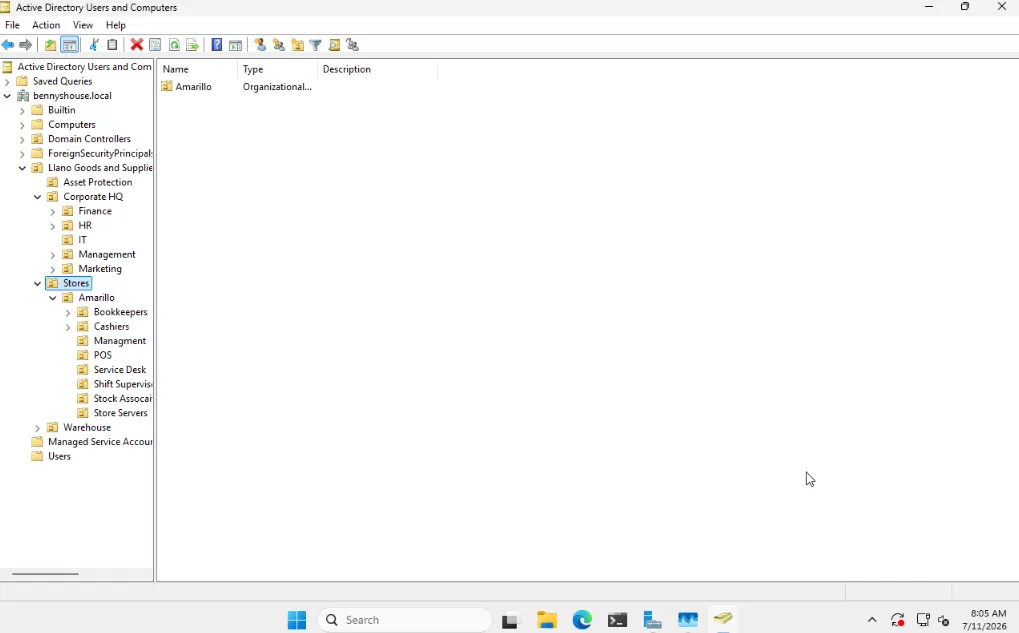
This lab is far from finished. The next phase involves building out a simulated retail company - Llano Goods and Supplies, a fictional West Texas retail chain - complete with an Active Directory structure modeling real departments, store locations, security groups, and access policies. The goal is to simulate the kind of environment you'd actually find walking into a mid-sized company on day one as an IT administrator.
If you're interested in IT infrastructure, I'd strongly encourage building something like this yourself. No tutorial teaches troubleshooting the way a real problem does - and in a homelab, every problem is yours to solve.
Built on a Dell OptiPlex 7050 running Proxmox, OPNsense, Windows Server 2025, Debian 12, and Windows 11.